
With the Operational Readiness Report, you are able to view and download/export the Operational Readiness Status for Workers across any date range.
The report is accessed from the Roster Administration page.
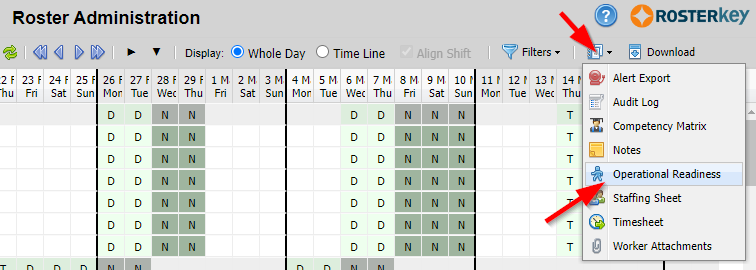
The initial report will show, for the date range on the Roster Administration page, all Workers who are on a Shift that has Operational Readiness Conditions annotated to the Shift and the status for the Worker for that Date/Shift/Condition combination.
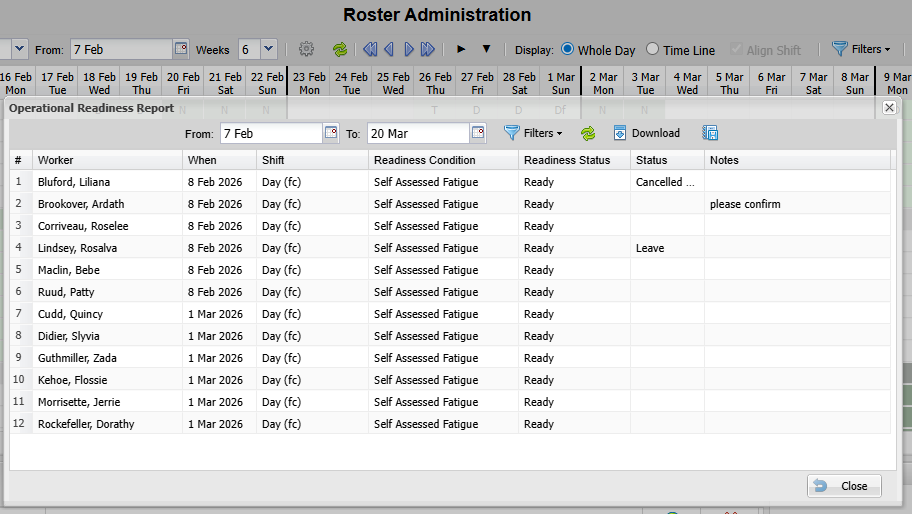
You are then able to change the date range if desired, as well as provide filters for the data.
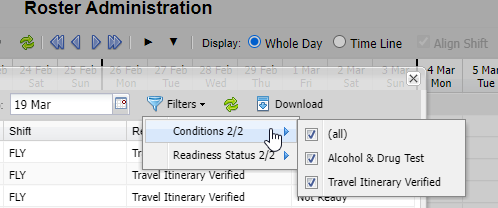 | 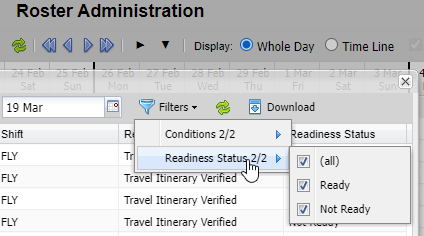 |
After selecting filter values, click the green Refresh arrows to regenerate the report.
You can also click the Download button to export the data to a ".csv" file.
You are able to schedule this report to run automatically and email the results by clicking the "Saved Reports" button.

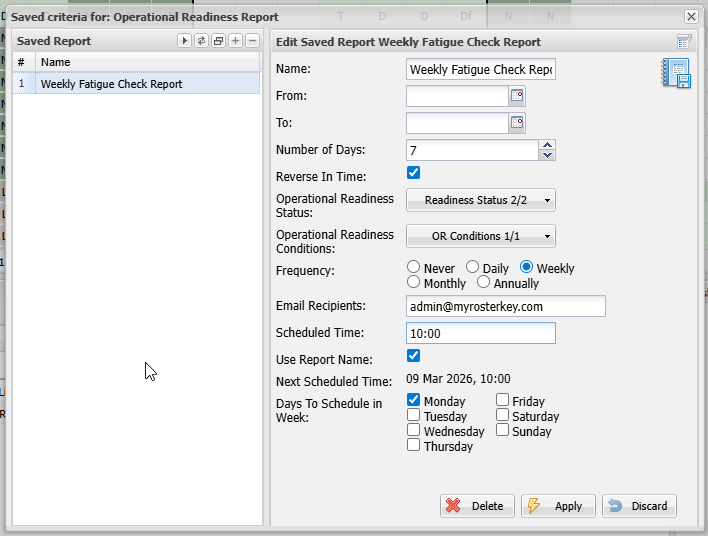
When creating a saved Operational Readiness Report you provide a name for the configuration as well as default values that will be applied to the report when it is run.
Different From/To/Number Of Days/Reverse In Time values will initiate different report date windows as follows:
| From | To (inclusive) | Number of Days | Reverse In Time | Report Start Date | Report End Date (inclusive) |
| not provided | not provided | 0 or not provided | no | beginning of current month | end of current month |
| not provided | not provided | 0 or not provided | yes | beginning of previous month | end of previous month |
| not provided | not provided | > 0 | no | current day | current day + Number of Days - 1 |
| not provided | not provided | > 0 | yes | Number of Days before current day | day before current day |
| not provided | provided | 0 or not provided | N/A | beginning of month matching the To month | the provided To date |
| not provided | provided | > 0 | N/A | the provided To date less Number of Days | the provided To date |
| provided | not provided | 0 or not provided | no | the provided From date | end of month matching the From month |
| provided | not provided | 0 or not provided | yes | beginning of the month of the provided From date | the provided From date |
| provided | not provided | > 0 | no | the provided From date | the provided From date + Number of Days - 1 |
| provided | not provided | > 0 | yes | Number of Days before the provided From date | the provided From date |
| provided | provided | N/A | N/A | the provided From date | the provided To date |
See Scheduling Reports for details on how to set up the report run times.
For additional information about Operational Readiness, read here.