
Overview
The Audit Log allows you to see a history of changes that have been made to a record in ROSTERkey. It shows who made each change, when they made it, and what was changed.
The Audit Log is available to Administrators only.
How to access the Audit Log
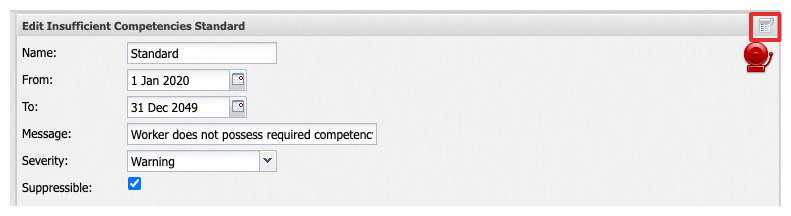
The Audit Log button appears across many toolbars in ROSTERkey wherever a record can be edited (for example, Settings, Roles, Locations, Shift Definitions, and more!). Look for the Audit Log icon in the toolbar of the form you are viewing. Pictured below:
Reading the Audit Log
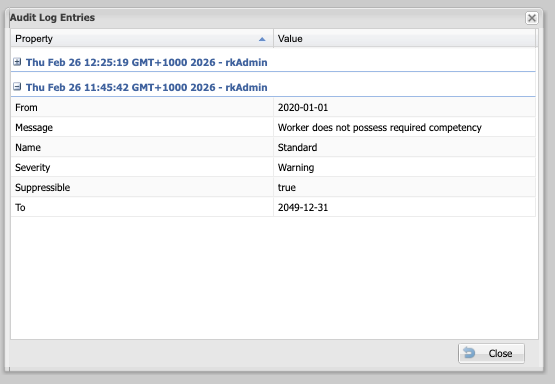
Changes are displayed in a grid with the Property and Value columns, and grouped under a timestamp with the date/time of the change.
How Entries are Organised
Entries are grouped by timestamp and user. If a user changed multiple fields at once, these changes appear together under a single Group heading. Groups are sorted in reverse chronological order (most recent changes appear first). Within each group, properties are sorted alphabetically and case-insensitively.