The Who's Working With Me list shows you which other workers are rostered on the same day as one of your shifts, so you know who you will be working alongside.
How It Works
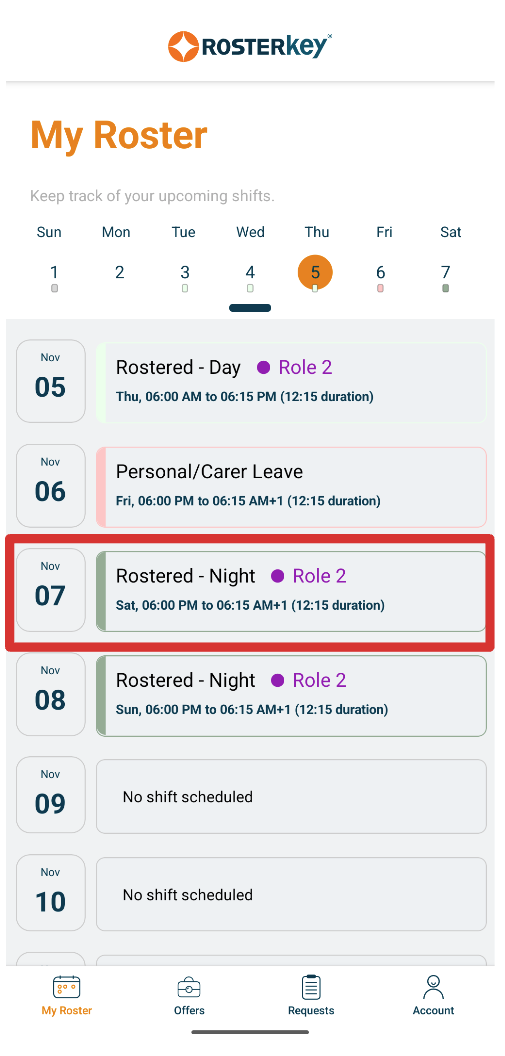
1. Open the My Roster tab on the ROSTERkey mobile app.
2. Tap a shift to open its details
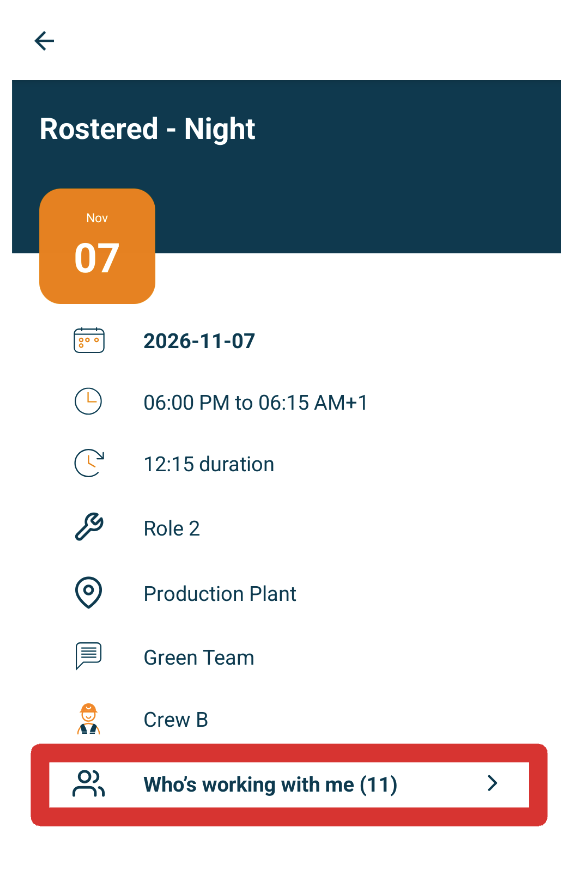
3. Tap "Who's Working With Me". The number in brackets is how many co-workers are listed
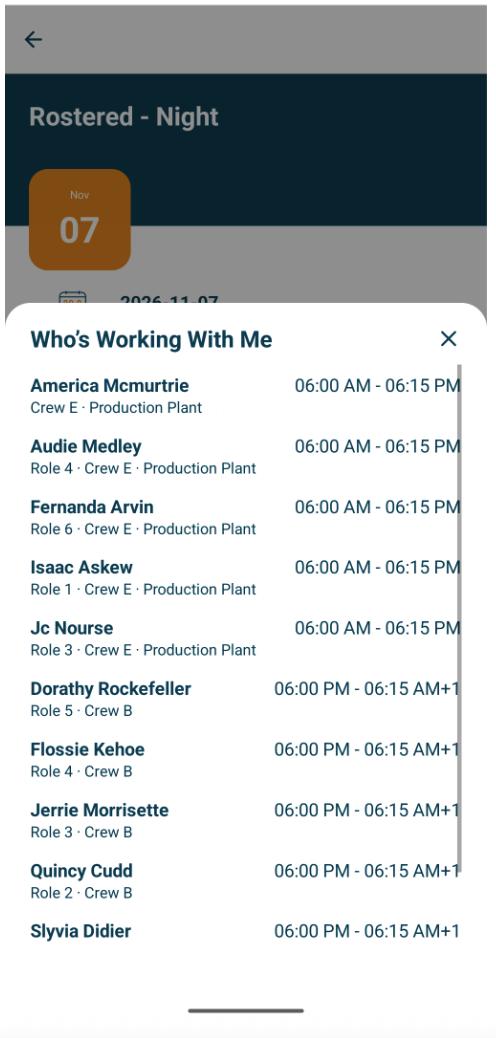
4. A panel slides up with the title Who's Working With Me. Tap X to go back to your shift
Who Appears in the List
- People in your department who are rostered on the same day as the shift you opened. You are not listed
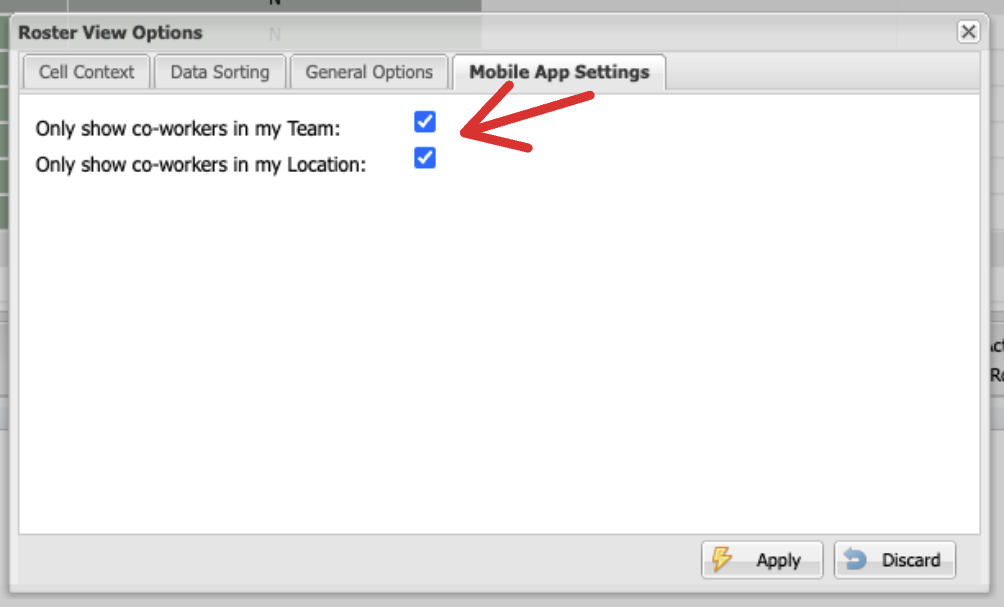
- If you have chosen to see only people with the same team, crew, role or location in your Work Roster options on ROSTERkey in your browser, only those people are listed. If none of those are chosen, everyone is listed