
There are several options that enable you to fine-tune your view on the Roster Administration page. These options are saved for each individual user and will persist from session to session. To access them, click the "Settings" button on the Roster Administration page.
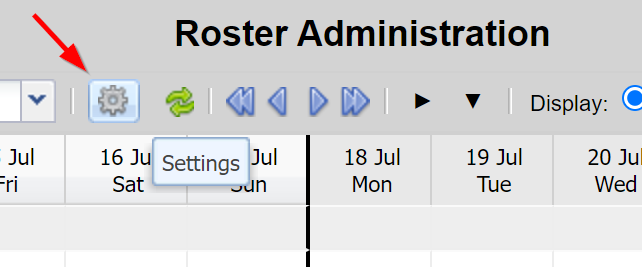
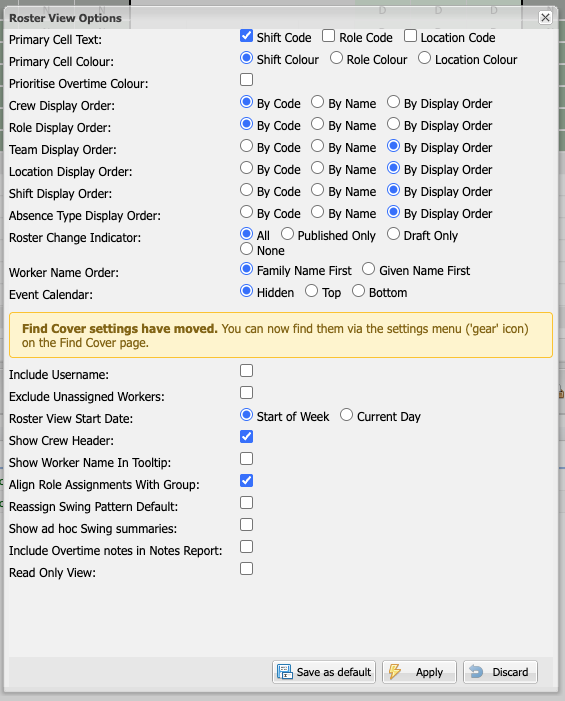
The Roster Administration Options ("Roster View Options") window will then popup. Select the options you want to use in the view and then click "Apply".
| Option | Details |
|---|---|
| Primary Cell Text | This will determine which type of data item will be used to display the text in the roster cells. If multiple selections are made, the codes for Role, Shift or Location are joined, separated by "-". |
| Primary Cell Colour | This will determine which type of data item will be used to choose the colour in the roster cells. |
| Crew Display Order | When in Crew Group view, determine which order to display the groups. |
| Role Display Order | When in Role Group view, determine which order to display the groups. |
| Team Display Order | When in Team Group view, determine which order to display the groups. |
| Location Display Order | When in Location Group view, determine which order to display the groups. |
| Shift Display Order | When in Shift view, determine which order to display the rows. |
| Absence Type Display Order | When in Absence Type view, determine which order to display the rows. |
| Roster Change Indicator | Controls which roster change indicators are displayed in the roster view |
| Worker Name Order | Determine which order to display personnel names. |
| Event Calendar | Controls whether the event calendar is visible, or displayed at the top or bottom of the Roster Administration view. |
| Include Username | Controls whether usernames are shown next to the user's name on the Roster View. |
| Exclude Unassigned Workers | This will exclude workers who are unassigned to a crew. |
| Roster View Start Date | This determines the start date when the Roster View is initially loaded or refreshed with a browser refresh, i.e. F5. "Start of Week" will use the date of the closest and prior day that matches the users configured first day of the week. "Current Day" will use the current date. |
| Show Crew Header | Indicate as to whether or not to display the group header when in the Crew Group view. |
| Align Role Assignments With Group | Personnel can have a default Role, to which they will be assigned on allocated Shifts. Additionally they can be re-assigned to a Role different to their default Role on any Shift. When viewing the Role grouping, if this option is un-ticked then the Worker will be included only in the Role group for their default Role. If the option is ticked, each shift allocation will be shown in the Role group for the Role assigned in that Shift. |
| Reassign Swing Pattern Default | When this option is un-ticked and Shifts are being re-assigned by Swing, no new Shifts will be automatically selected for the re-assignment. The user will then select a Shift pattern to apply to the Swing re-assignment. If ticked, the Shift pattern from the selected Swing will be pre-assigned to the new Shifts. |
| Show ad hoc Swing summaries | When this option is ticked, published ad hoc Swing changes are included in the roster change summary and change indicators. |
| Include Overtime notes in Notes Report | When ticked, adds the "Overtime Notes" column to the Notes Report. |
| Read Only View | Ticking this will allow the view to switch to a read-only mode. This will allow selection of up to 12 weeks to view and remove the change summary and detail frames as well as the Alert frame. Make sure to click the green view refresh arrows to apply the change. |
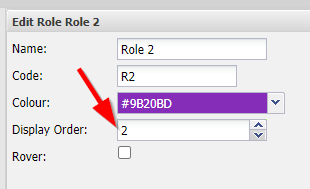
When using "By Display Order" for various Display Order options, the Display Order value for that category is used to sort the data items, e.g. for Role
Settings selections are able to be saved as default settings. When the "Save as default" button is clicked, the selected options will be saved and then used as the initial settings for any new User as well as those available to Guest users. New users will later be able to save their own settings. Guest Users will not. If operating in a multi-department mode, these default settings are saved per department.
Note that these options are carried over to other parts of ROSTERkey that use the same display features.