
Calendar Events are entries that appear on the main roster view to mark notable dates or periods - things like public holidays, training days, shutdowns or any other occasion relevant to your crew's schedule.
Accessing Calendar Events
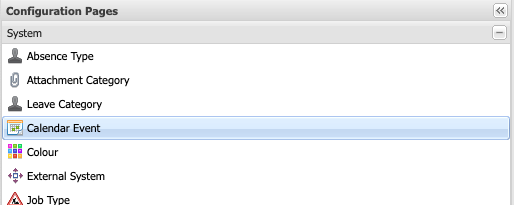
Calendar Events can be accessed via the Configuration page, under the "Calendar Event" heading.
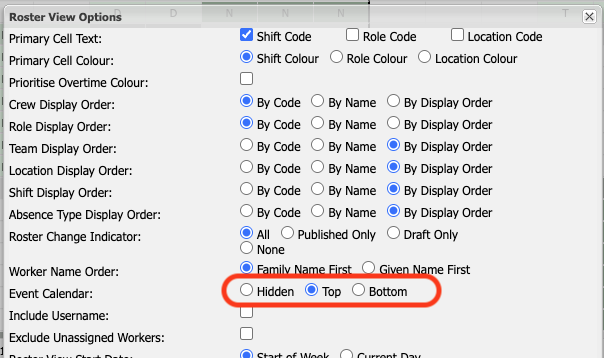
In order to see Calendar Events on the Roster Administration view, they must be set to visible in the Roster View Options, they can be displayed at the top or bottom (or be hidden!) of the Roster Admin view.
Note: By default, Calendar Events are hidden in the roster view.
When enabled, Calendar Events are displayed on the Roster Administration view as such:

Creating a Calendar Event
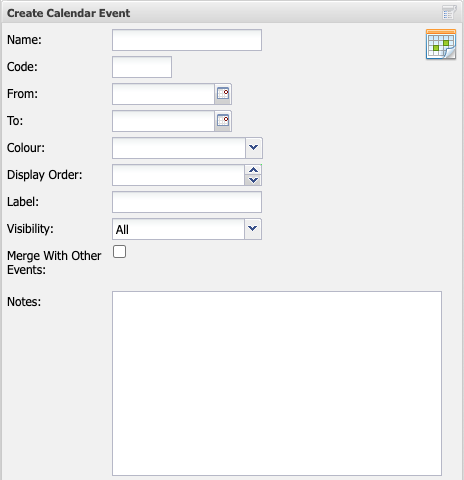
When creating or editing a Calendar Event, you'll see the following options on the Calendar Event form:
| Property | Description |
| Name | The full name of the event (e.g "Australia Day") |
| Code | A short unique identifier of the event, which is displayed in the grid |
| From: | Start date of the event (inclusive - the event is active on the day) |
| To: | The end date of the event (exclusive- the event is active up to not but including this day) |
| Colour | The colour used to display the event on the roster grid |
| Display Order | Controls the ordering of Calendar Event rows on the roster. Lower numbers appear first |
| Label | Short text displayed on the tooltip when you hover over a Calendar Event |
| Visibility | Controls which page the Calendar Events are viewable on. Options: Roster Administration or Work Roster pages |
| Merge With Other Events | When ticked, this event can be combined with other mergeable events (see below) |
| Notes | Optional free-text notes providing additional details about the event |
Merged Calendar Events
Sometimes multiple Calendar Events fall on the same dates - for example, school holidays that coincide with a training period. Rather than cluttering the roster with separate rows for each, you can tick "Merge with other events" when creating or editing a Calendar Event.
All "mergeable" Calendar Events are combined into a single "Multiple Events" row on the Roster View:
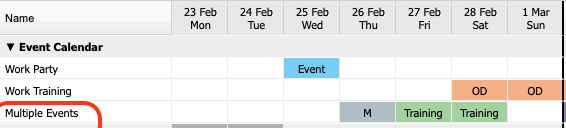
In the above example, on the 26 Feb, Jerry's Birthday has coincided with the first day of a three day Work Training exercise. The details of such can be viewed by hovering the overlapping Calendar Event:
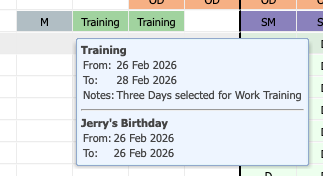
Note: Any overlapping Calendar Events will always be denoted with an "M" in their cell.
If a Calendar Event is the only one that has "Merge with other events" ticked , it simply displays as a normal row with its own name and colour - it won't appear under "Multiple Events" on its own.