
The Send Messages function allows you to contact one or more workers via email, SMS, and/or mobile app notification directly from the roster view.
How To
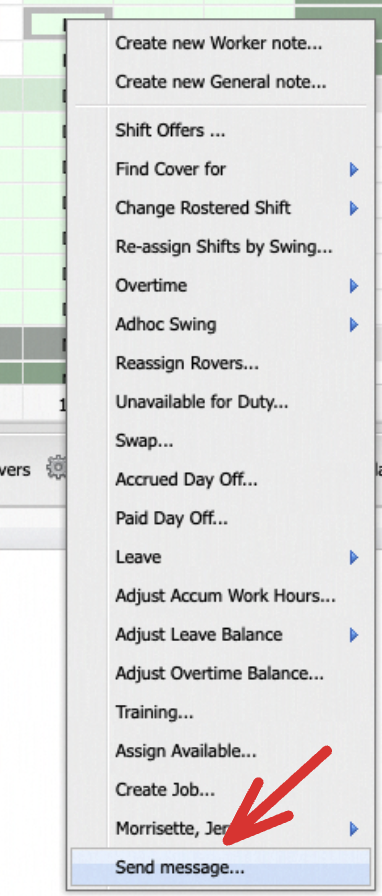
On the Roster Administration page, right-click a worker's cell in the roster grid, and select "Send message..." from the context menu. This opens the Send Message form with the selected worker(s) pre-loaded.
The Send Message Form
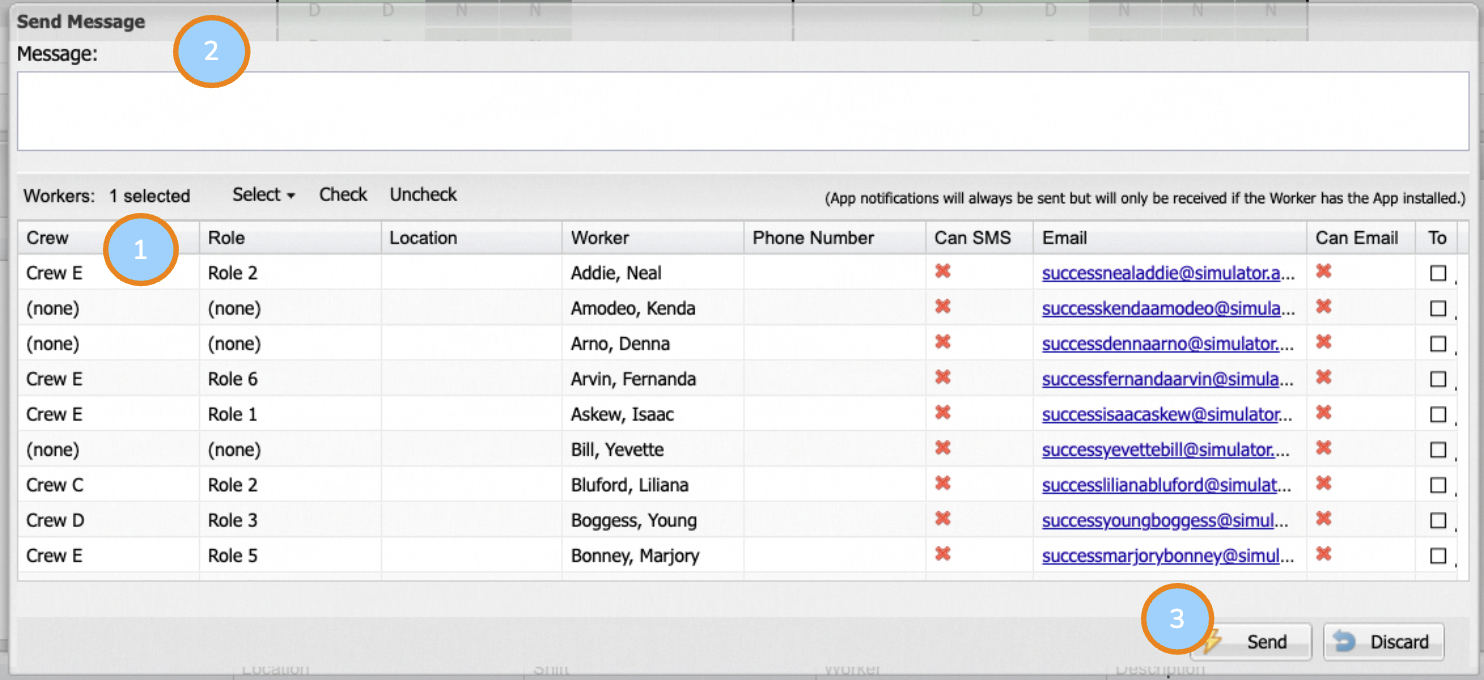
1. Worker List
The form displays a grid of workers showing their name, crew, role, email address, phone number and whether they can receive emails and SMS. Each worker has a checkbox - tick the workers you want to message and untick any you want to exclude.
Note: A worker's ability to receive email or SMS depends on their contact details and notification preferences configured in their worker profile.
2. Message
Type your message in the Message field. This is the content that will be sent to all selected workers across all channels (email, SMS and the ROSTERkey app) that are available to them.
What Happens When You Send a Message
When you click Apply, the message is sent immediately to each selected worker through every contact channel available to them:
- Email - The worker receives an email with your message. The reply-to address is set to the sender's email where configured
- SMS - The worker receives a text message
- ROSTERkey Mobile App - The worker receives a push notification in the ROSTERkey app.
Which channels a worker receives the message depends on their contact cinfiguration. A worker may receive the message on one, two, or all three channels.
Sending from Find Cover
When you launch Send Message from the Find Cover page, additional functionality is available:
Priority Column
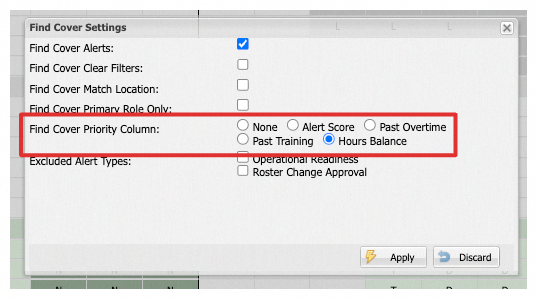
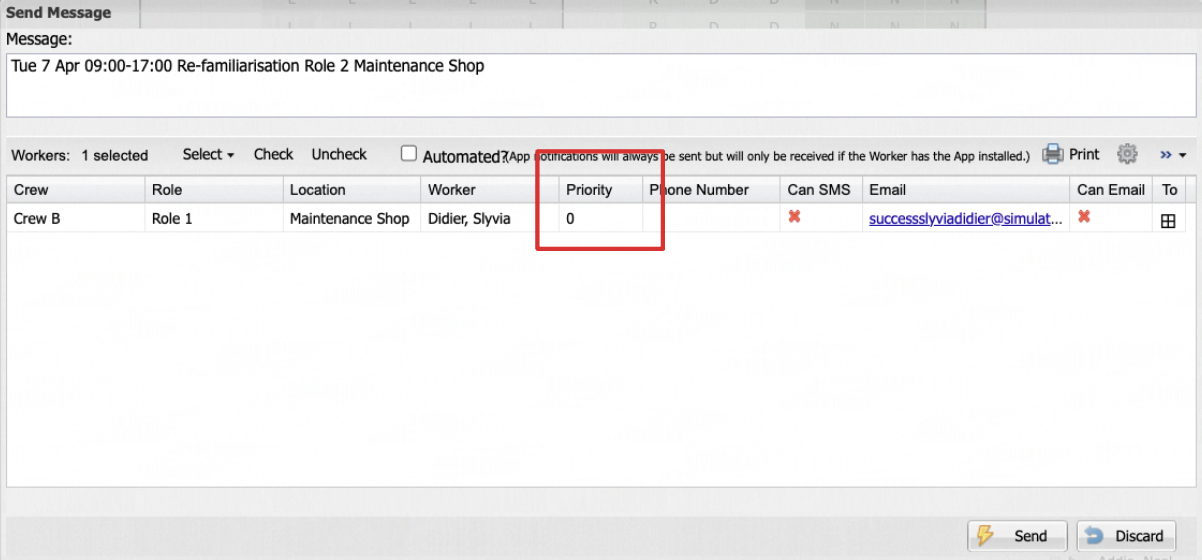
If you have a priority column enabled in your Find Cover settings (e.g.. Hours Balance, Past Overtime or Past Training), the Send Message grid will be organised by Priority showing the worker's priority value. Workers are sorted by this value to help you choose the best candidate.
Shift Offers
If Shift Offers are enabled for your department, the Send Message form behaves differently depending on your Shift Offer Notification Mode:
| Mode | What Happens |
| Send | This message is sent immediately to the selected workers. They can accept or decline the shift via SMS reply or the app |
| Save | The shift offer is saved but no message is sent. This is useful for preparing offers to be sent later. |
| Send & Save | Both the Apply and Save buttons are available, giving you the choice. |
Automated Shift Offers
If your department has automated shift offers configured, the form will display an Automated checkbox and interval setting. When enabled:
- The first worker in the list is contacted immediately.
- Remaining workers are contacted one at a time at the configured interval, giving each worker time to respond before the next is contacted.
When sending in the Find Cover, a Print button is available. This generates a printable list of the selected workers and the message, which can be useful for record-keeping. Use the Settings button to configure which columns appear in the printout.