
Overview
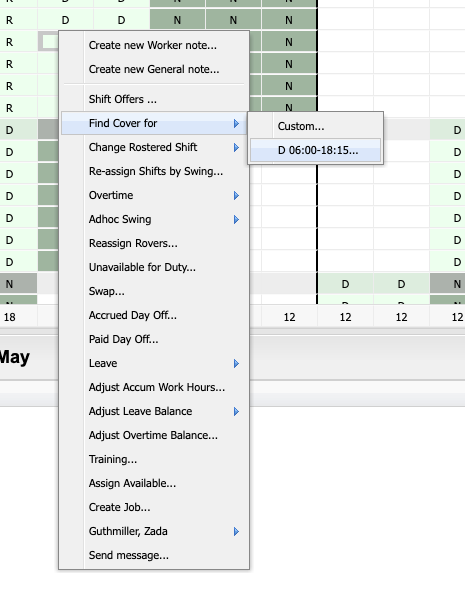
ROSTERkey's Find Cover function is a tool for finding a worker to cover a shift. It is accessed from the main roster view by right-clicking on a cell, which opens the context menu with Find Cover as an option. Find Cover is available both on the Roster Administration page, and the Work Roster page.
How to Use Find Cover
Right-click a cell on the roster view to open the context menu and select a Find Cover option. The find form will open as a popup window with fields pre-filled based on the cell you selected:
| Name | Properties |
| Timeslot | the date of the shift to cover |
| Cover For | the worker who needs to be covered |
| Role | the role required |
| Location | the location of the shift (only shown if your organisation uses the Locations feature) |
| Shift Definition | the shift definition to cover |
| Period | uses a start-finish period-based roster |
You can adjust any of these fields before searching. Click Next to search for available candidates.
Selecting a Candidate
The candidates grid displays workers who are available to cover the shift. From this screen you can:
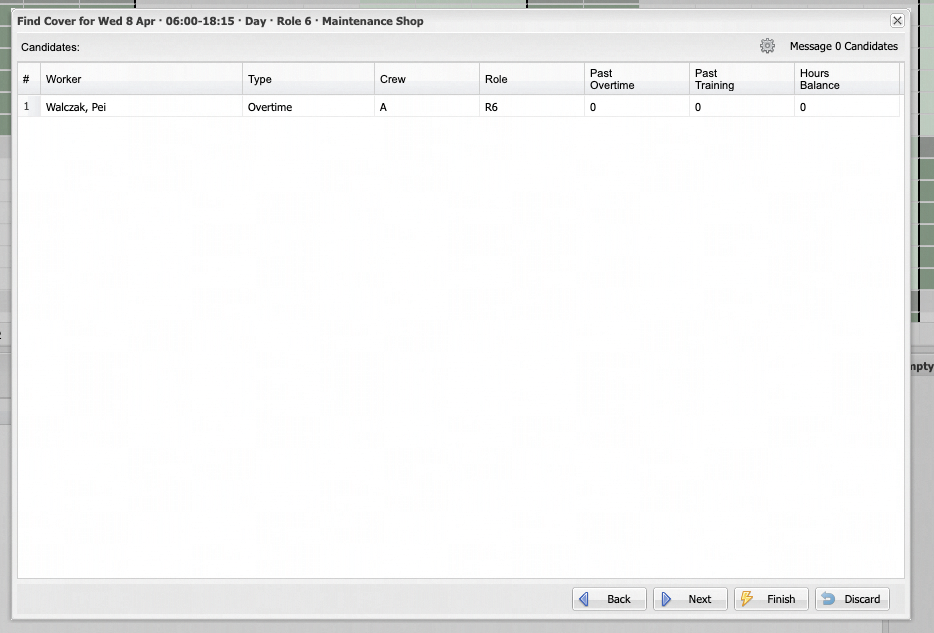
- Double-click a candidate to create a roster change immediately
- Next - opens the roster change form for the selected candidate, allowing you to review or edit before saving
- Finish - creates the roster change immediately for the selected candidate
- Message - send a message to one or more selected candidates. See the Send Messages page for more information.
- Back - return to the find form to adjust your search criteria
- Discard - close Find Cover without making changes
On the Work Roster page, Messaging is not available. Messages are only available to Shift Coordinators.
Find Cover Settings
On the Roster Administration page, the candidates grid includes a settings button (gear icon) that lets you configure how candidates are found and displayed:
| Option | Details |
| Find Cover - Alerts | This is used to indicate whether or not to include candidates in the Find Cover process that would generate alerts if they were selected to cover the specified shift. |
| Find Cover - Primary Role Only | This specifies whether the Find Cover process considers only a worker's primary role, or any of their assigned roles, when determining suitable candidates for cover. |
| Find Cover - Priority Column | This specifies which initial sort order to use for candidates found by the Find Cover process. The Find Cover candidate selection form includes columns for each of the items in this selection field. Note that if "Find Cover Alerts" is unticked, then the "Alert Score" will not be shown in the selection form and will be ignored as a sort order. |
| Find Cover - Match Location | This specifies whether the Find Cover process will only include candidates who are associated with the same location as the shift being covered. |
| Find Cover - Clear Filters | Automatically clear any grid filters each time the candidates list is refreshed. |
| Find Cover - Excluded Alert Types | Choose which alert types to exclude from your search. |
Settings are applied immediately. The candidates grid will refresh automatically when you save your changes.